How to Merge PDFs and Put Every Page in the Right Order
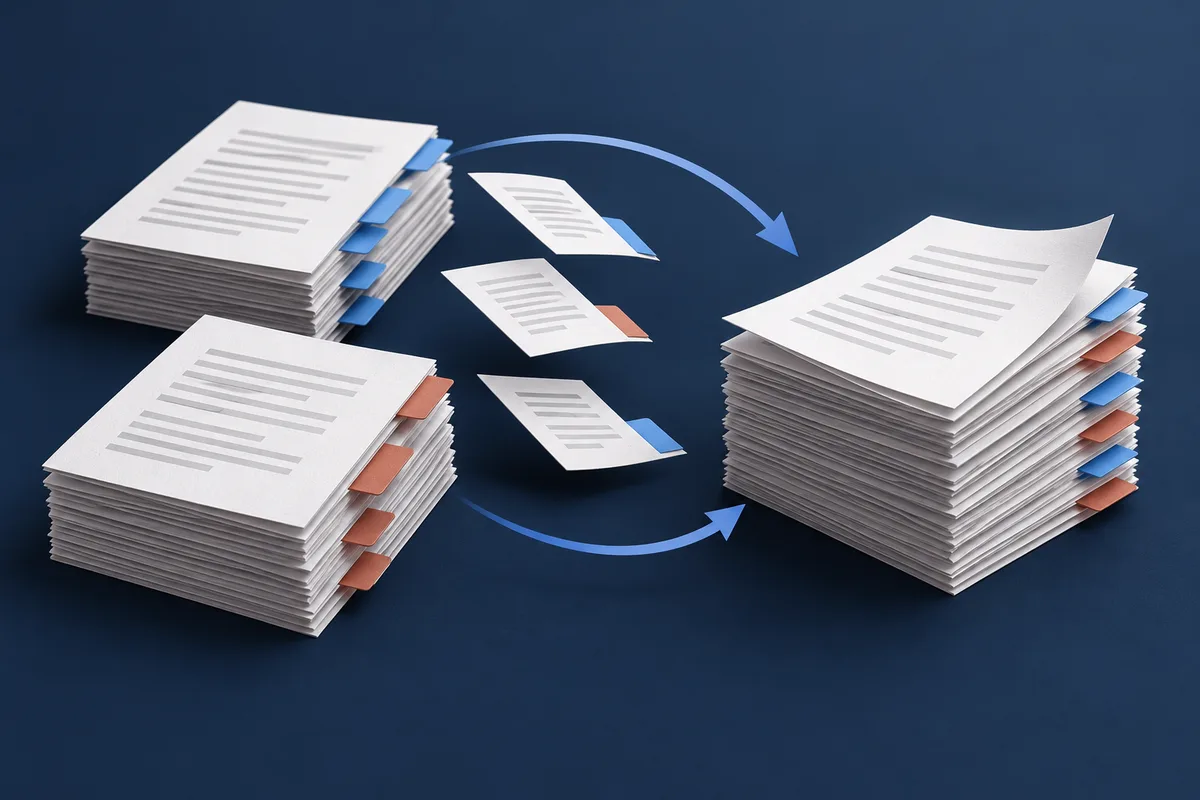
A PDF can contain all the right pages and still be awkward to read. The cover is in a separate file, the supporting photo belongs after page two, and a duplicate scan is sitting at the end. Joining the files in their original order does not quite solve that.
SyncTonight's PDF Merger lets you arrange individual pages from different PDFs on one canvas. Move a page from the second file into the middle of the first, remove the duplicate, then download the sequence you can see. You do not have to rename every source file to force it into position.
Choose the PDFs you want to combine. Their pages will appear together in the canvas.
Open PDF MergerAdd the files and check what arrived
Select one or more unlocked PDFs using Choose PDFs. You can select several at once. The canvas creates a card for each page, with a thumbnail, its position in the output and a source-page label. The filename helps distinguish pages that look similar.
Those two page numbers have different jobs. The number at the top of the card tells you where that page will appear in the download. Source page tells you where it came from in its original PDF. Move a card and its output position changes; its source-page number should not.
Thumbnails load as you reach them, so a large document may not show every preview immediately. Keep an eye on the total page count, particularly when a scan contains blank backs or an unexpected duplicate. Removing a card changes the new PDF you are making, not the source file stored on your device.
Arrange pages, not just files
On desktop, grab the dotted grip on a page card and drag it to the position you want. A small copy of the page follows the pointer, showing the filename and page number so you can see what you are carrying. The destination card is highlighted before you release it.
The arrow buttons are useful for moving a page one position at a time. They are also a good choice when you want a precise move without dragging across a large canvas. Use the red trash button for pages you do not want in the finished file.
Suppose proposal.pdf contains a cover and a quote, while photos.pdf contains two product photos. You want the cover first, a photo second, the quote third and the remaining photo last. The final sequence looks like this:
| Output page | Source file | Source page |
|---|---|---|
| 1 | proposal.pdf | 1 - cover |
| 2 | photos.pdf | 1 - product photo |
| 3 | proposal.pdf | 2 - quote |
| 4 | photos.pdf | 2 - detail photo |
You can mix pages this way without converting the originals into screenshots. With the default print settings, the merger copies the PDF pages. Text that was already selectable can remain selectable, and a scanned page remains a scanned page; merging does not turn it into searchable text.
Need another PDF? Use the plus tile
The + Add PDFs tile sits inside the canvas. Click it to choose another PDF, and its pages are appended after the pages already there. Your existing order stays in place. Move the new pages to their intended positions once they appear.
If the extra material is a JPG or PNG rather than a PDF, use Image to PDF first, then add the resulting file here. For paper-size and margin choices during that conversion, see the image-to-PDF guide.
Using the merger on a phone
Mobile shows one page card at a time. Previous and Next let you browse the output sequence; the small arrow controls on the card actually move that page earlier or later. That difference is easy to miss: browsing to the next page does not reorder anything.
After moving a page, check the output number above it. Use the plus tile to add more PDFs and continue arranging them. For a long document, a larger screen makes comparison easier, but the page controls are also available on mobile.
Leave print settings alone unless you need them
None (original size) is the default extra-margin setting. Use it when you simply want the original pages in a new order. Mixed paper sizes remain mixed; merging an A4 document with a smaller receipt does not automatically turn the receipt into an A4 page.
Extra margin adds blank space around each page and increases the output paper size. It does not squeeze the original content onto the same sheet. For example, 10 mm on every edge adds 20 mm to both the page width and height. Keep this in mind if you will later print on standard A4 paper: your printer may scale the enlarged page to fit.
Rotate all pages applies the same rotation to the whole output. It is useful when the entire batch is sideways. If only one source document needs fixing, correct that document with PDF Rotate before adding it. Do not rotate a whole mixed batch to solve one sideways page.
Give the download a name you will recognise
Set PDF output name in the side panel, then select Download PDF. A name such as proposal-with-photos.pdf is easier to find than another merged.pdf. Before sending it, open the downloaded file and check the page count, the joins between source documents and any page you moved.
The order in the canvas is the order in the saved file. There is no separate sorting step after download. Clear all removes the current working set, so use it when you are finished or want to start a new batch.
A few limits that are useful to know
- The uploader accepts up to 100 files, 100 MB total and 500 source pages. Smaller batches are easier on a phone with limited memory.
- Password-protected PDFs are not accepted. Use an unlocked copy you are authorised to edit.
- Merging is not compression. A file with large scanned images can still be large after the pages are combined.
- Treat the download as a newly assembled document. Do not assume source bookmarks, attachments, interactive form behaviour or digital signatures will carry over. Keep the original files.
The merge itself runs in your browser, and the selected PDFs are not sent to a conversion server. Once the download has finished and you have checked it, you can close the tab. The useful final check is simple: can someone read the document from the first page to the last without having to guess what belongs where?
Found this helpful?
SyncTonight's tools and guides are free and always will be. If this post saved you some debugging time, a coffee goes a long way — no pressure, just appreciated.
☕ Buy me a coffee