How to Print Meesho Shipping Labels on A4 Paper Without Wasting Space
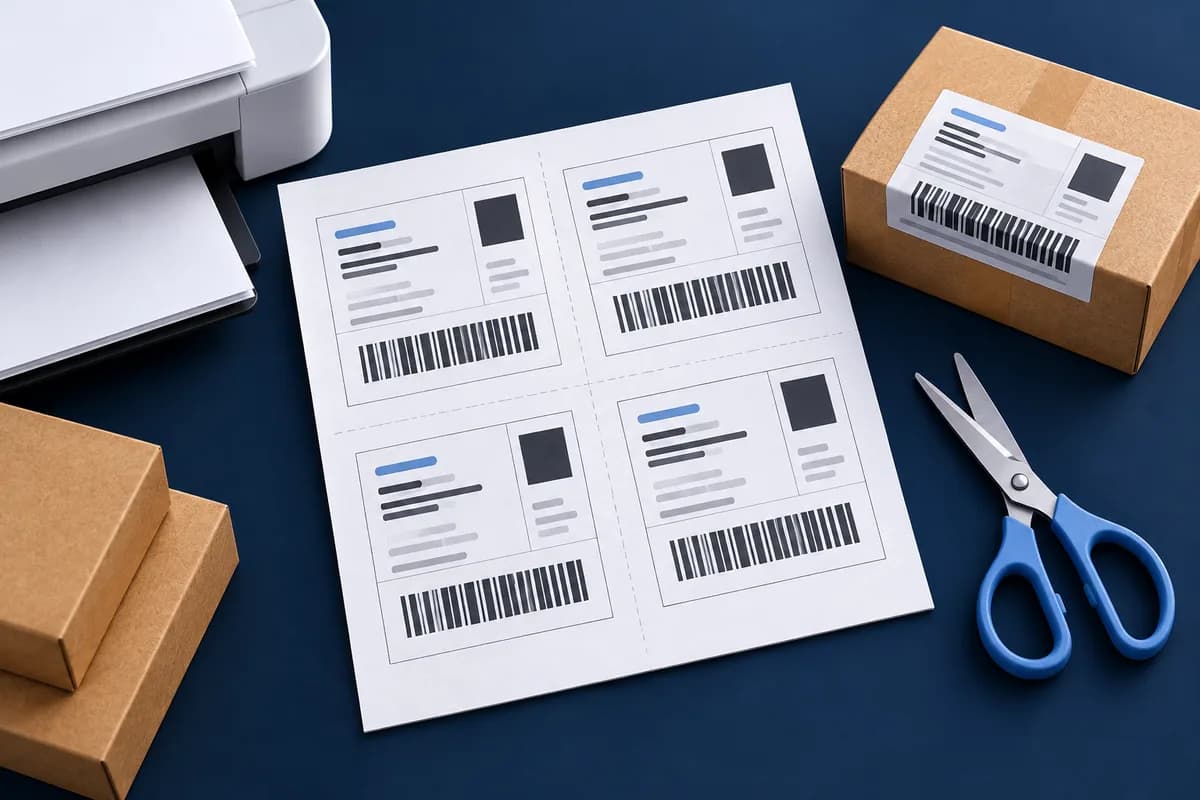
To put several Meesho labels on one A4 sheet, crop the unused space around each label, arrange the complete labels on an A4 layout, and print that finished sheet at actual size. Four labels per sheet is a useful starting point only when the printed text and barcodes remain readable.
A large white PDF page does not mean the label itself needs that much paper. But a rectangle that looks empty at normal zoom can contain a small order number or invoice footer. Inspect the entire page before removing anything.
1. Download the original label PDF
Sign in to the Meesho Supplier Panel, open your orders, and find the accepted orders ready for dispatch. Use the shipping-label download action for the selected orders and save the PDF. Button names and order tabs can change; follow the current instructions in your own panel if they differ.
Use the original downloaded PDF rather than a screenshot or a photo of the screen. Check that the order count matches the batch you intend to pack.
2. Crop whitespace, not shipping information
Keep the complete address, return address, courier name, tracking number, barcode and any required QR code. Leave clear white space around the barcode. If the document includes an invoice or other required paperwork, do not discard it merely to fit more labels on a sheet.
SyncTonight automatically estimates outer whitespace when a PDF loads. It does not identify which marketplace text is legally or operationally optional. Review every selection; use Full page if the automatic crop misses content, then draw a safer crop yourself.
Open the PDF in the browser, inspect each crop, and arrange the selected labels on the live sheet preview.
Crop Your Shipping Label3. Arrange a three-label batch on one sheet
- Upload a three-page PDF containing one label per page. Review page 1, then use Next to inspect pages 2 and 3.
- If all pages have exactly the same layout, Apply to all 3 pages copies your crop. Still check the other pages: a longer customer address can extend further down.
- In Print settings, choose A4 Sheet and 4 labels per sheet. The three labels occupy three positions on one output sheet; the fourth remains empty.
- Use the preview to move or resize labels without overlap. If anything becomes too small, select fewer labels per sheet instead of cutting off information.
- Give the output a recognisable file name and select Download PDF. Open that PDF and check all three labels before printing.
For this example, three separate source pages become one output A4 sheet. This saves paper compared with printing each source page separately; it does not guarantee a particular ink saving. Most ink is used for the same printed content regardless of how closely the labels are arranged.
4. Match the printer settings to the finished PDF
Load A4 paper and choose A4 in the print dialogue. Match portrait or landscape to the downloaded PDF. Start with Actual size or 100% scale, and keep the printer dialogue at one PDF page per sheet: the cropper has already arranged the labels. Selecting four pages per sheet again makes the whole layout smaller.
Check the printer preview for clipped edges. Some printers cannot print close to the paper edge. Move labels inward or use a layout with more room if your printer clips the outer content. Do not assume a PDF margin is automatically within every printer's printable area.
Make one test print before the full batch
Read the smallest address text and test the barcode on paper with your scanning setup where available. A successful phone scan is useful but does not certify courier acceptance. Keep the printed sheet flat and avoid placing cuts, folds or reflective tape through the barcode. Confirm any specific label-size requirements with your courier.
Mistakes that waste a second sheet
- Using draft or economy mode when it leaves broken barcode bars. Choose a setting that produces solid, sharp black printing.
- Taking screenshots of the PDF. Cropping cannot restore detail that the screenshot has already lost.
- Adding cutting guides through content. Inspect their position and leave guides off if the layout is too tight.
- Reprinting an entire batch after one spoiled label without checking which orders are already packed. Keep the downloaded batch and printed parcels organised.
- Adding store QR branding before checking shipping readability. Branding is optional and can reduce the room available to the courier label.
Related Guides
If you are deciding whether to keep using A4 sheets, compare A4 and thermal label printing. To account for paper, labels and packing in your selling price, read the Meesho profit calculation example.
Found this helpful?
SyncTonight's tools and guides are free and always will be. If this post saved you some debugging time, a coffee goes a long way — no pressure, just appreciated.
☕ Buy me a coffee